
Dark Mode Design: Colors That Work in Both Modes
Why do some colors look burnt in dark mode? Using Helmlab's L-dependent chroma scaling to create palettes that work in both modes.
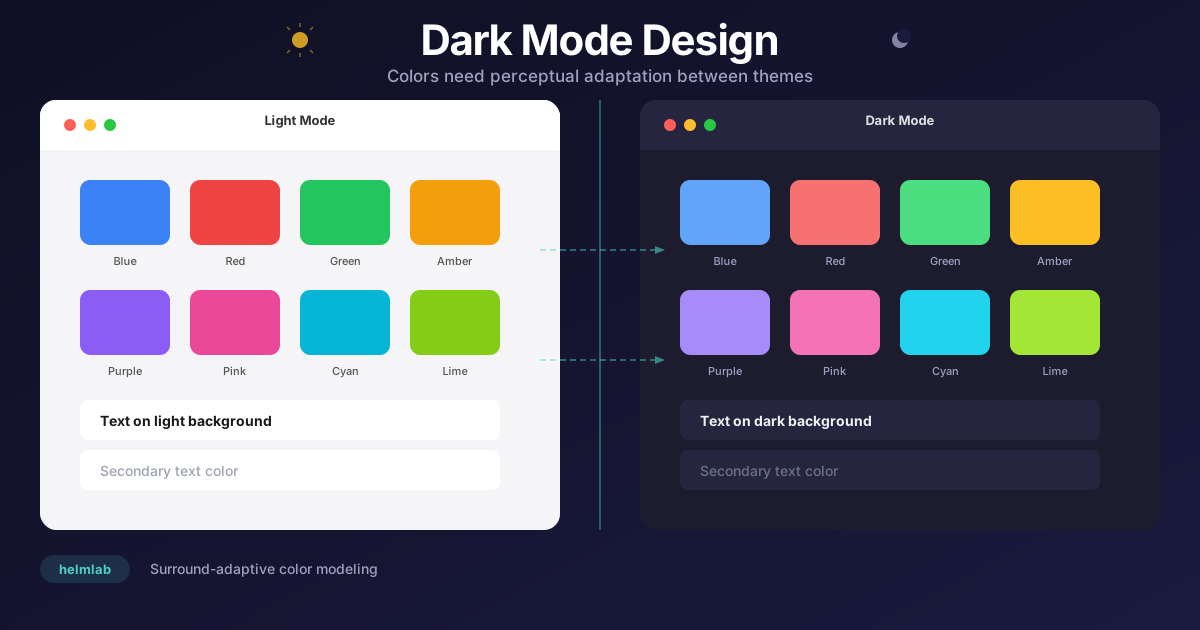
Your app's light mode looks perfect. The colors, the tones, the contrast -- everything sits exactly where it should. Then you flip to dark mode. Suddenly the same colors look wrong: some tones appear burnt, others are harsh enough to strain your eyes, and a few seem to vanish into the dark background entirely. That orange button that looked warm and inviting in light mode now feels like scorched paper.
This is not an aesthetic judgment call -- it is an inevitable consequence of physics and perceptual science. In this post, we will explore the scientific reasons why colors look wrong in dark mode, the role of the lightness-chroma relationship in this problem, and how to use Helmlab to generate palettes that work correctly in both modes.
Why Colors Look Wrong in Dark Mode
When your eyes operate against a dark background, they function differently. The retina increases its sensitivity in low-light conditions -- a process called dark adaptation. This has two fundamental effects on color perception:
- Simultaneous contrast -- The same color looks different on a light background versus a dark background. Colors on a dark background are perceived as brighter and more saturated. This is why a color calibrated for light mode can appear harsh and eye-straining in dark mode.
- Stevens effect -- As ambient brightness drops, our contrast perception changes. On dark backgrounds, darks appear darker and lights appear lighter. This causes mid-tones in dark mode palettes to "disappear."
- Hunt effect -- At low luminance levels, color saturation is perceived as diminished. This is why colors in dark mode sometimes show a strange imbalance between "washed out" and "vibrant."
In short, dark mode is not just "make the background black." When the background changes, the eye changes too, and the same color is genuinely perceived differently.
The Real Problem: Lightness and Chroma Are Coupled
One of the most overlooked relationships in color science is this: how vivid (saturated) a color can appear depends on its lightness level.
Think about this with a concrete example. You can easily picture a bright, vivid yellow -- a light tone. But try imagining a dark yellow. What you actually get is olive or something approaching brown. A pure, saturated dark yellow does not physically exist.
The same works in reverse. Imagine a very light red -- you actually end up with pink. As lightness increases, the available chroma (saturation) decreases.
Why does this graph matter? Because dark mode colors live in the low-lightness region, while light mode colors live in the high-lightness region. And in these two regions, the available maximum chroma is different. When you move a color from light mode to dark mode, you are not just changing the background -- you are changing the physical space in which the color can exist.
The Failure of HSL and RGB
The typical approach to building a dark mode palette in HSL is straightforward: lower the lightness value, keep the saturation the same. But HSL's concept of "saturation" is far from perceptual. A dark red at HSL saturation=100% does not look that saturated to your eyes -- because at low lightness levels, the human eye simply cannot perceive saturation well.
The result: two colors with mathematically "identical saturation" in HSL, one in light mode and one in dark mode, look completely different to your eyes. One appears vibrant and fresh, the other burnt or muddy.
// Naive dark mode approach with HSL — PROBLEMATIC
const lightBlue = 'hsl(220, 80%, 55%)';  // light mode
const darkBlue  = 'hsl(220, 80%, 30%)';  // dark mode — looks burnt!

// Saturation is the same (80%) but perceptual saturation is very different
// Because HSL cannot model the lightness-chroma relationship
Helmlab's Solution: Lightness-Dependent Chroma Scaling
In stages 9 through 11 of Helmlab's 13-stage pipeline, a critical operation occurs: chroma scaling is applied as a function of lightness.
What does this mean? When Helmlab converts a color to Lab space, it scales the color's chroma (saturation) according to its lightness level. Dark tones receive a different chroma weight than light tones. This scaling is not arbitrary -- it operates with parameters learned from over 64,000 human experimental observations.
As a result, two colors with the same chroma value in Helmlab Lab space -- one dark and one light -- genuinely look equally saturated to your eyes. This is the key to creating consistent colors between dark mode and light mode.
The relevant pipeline stages:
// From the Helmlab pipeline (simplified)
// Stage 9: Hue-dependent chroma scaling (4-harmonic Fourier)
C *= chromaScale(hue);  // different hues get different chroma scaling

// Stage 10: Chroma power transform
C = pow(C, chromaPower);

// Stage 11: Lightness-dependent chroma scaling
C *= chromaScaleL(L);   // dark and light tones are treated differently

// These 3 stages together correctly model the lightness-chroma relationship
// Parameters optimized from 64,000 human observations
In Practice: Light/Dark Mode Variants from a Single Base Color
Helmlab's semanticScale() function generates an 11-step scale from a single base color. The lightest tones of this scale (50-200) are ideal for light mode, while the darkest tones (700-950) are ideal for dark mode.
import { Helmlab } from 'helmlab';

const hl = new Helmlab();

// One blue, both modes covered
const scale = hl.semanticScale('#3B82F6');

// For light mode:
// Background:  scale['50']   — lightest tone
// Text:        scale['900']  — darkest tone
// Accent:      scale['500']  — base color

// For dark mode:
// Background:  scale['950']  — darkest tone
// Text:        scale['100']  — light tone
// Accent:      scale['400']  — slightly lighter base

// All transitions are perceptually equidistant
// Chroma is correctly scaled at every lightness level
The beauty of this approach is simple: define a single base color, and semanticScale generates all the variants needed for both modes with perceptually correct chroma. You no longer need to pick separate colors for light and dark mode.
Full Implementation: Dual-Mode Palette System
Here is a complete example -- building a palette from a single base color that supports both modes for your design system:
import { Helmlab } from 'helmlab';

const hl = new Helmlab();

function createDualModeTokens(name, baseHex) {
  const scale = hl.semanticScale(baseHex);

  return {
    light: {
      [`${name}-bg`]:       scale['50'],
      [`${name}-bg-hover`]: scale['100'],
      [`${name}-border`]:   scale['200'],
      [`${name}-text`]:     scale['700'],
      [`${name}-solid`]:    scale['500'],
      [`${name}-contrast`]: scale['950'],
    },
    dark: {
      [`${name}-bg`]:       scale['950'],
      [`${name}-bg-hover`]: scale['900'],
      [`${name}-border`]:   scale['700'],
      [`${name}-text`]:     scale['200'],
      [`${name}-solid`]:    scale['400'],
      [`${name}-contrast`]: scale['50'],
    }
  };
}

// Usage
const primary = createDualModeTokens('primary', '#3B82F6');
const danger  = createDualModeTokens('danger',  '#EF4444');
const success = createDualModeTokens('success', '#22C55E');

// primary.light['primary-solid'] → '#3b82f6'
// primary.dark['primary-solid']  → '#6089f8'
// Perceptually correct saturation in both modes
Comparison: HSL vs Helmlab Dark Mode Palette
The visual below compares dark mode palettes generated from the same base blue using HSL and Helmlab:
Practical Tips for Dark Mode
When designing dark mode with Helmlab, follow these principles:
1. One Base Color, Two Modes
Do not pick separate light/dark variants for each color. Use semanticScale to generate all variants from a single base color. This automatically preserves brand consistency.
2. Shift Accent Colors One Step
In dark mode, use a tone one step lighter than the base (400 or 300) as your accent color. It provides better contrast against the dark background:
const scale = hl.semanticScale('#3B82F6');

// Light mode accent: scale['500'] (base color)
// Dark mode accent:  scale['400'] (one step lighter)

// Check the perceptual distance
const contrastLight = hl.deltaE(scale['50'],  scale['500']);
const contrastDark  = hl.deltaE(scale['950'], scale['400']);
// Similar perceptual contrast in both modes
3. Do Not Forget the Gray Scale
The foundation of dark mode is your gray scale. Generate it from a neutral gray with Helmlab:
// Neutral gray scale
const gray = hl.semanticScale('#6B7280');

// Dark mode backgrounds:
// gray['950'] — main background
// gray['900'] — elevated surface (card, modal)
// gray['800'] — borders
// gray['300'] — secondary text
// gray['100'] — primary text
4. Verify Contrast with deltaE
Contrast errors are extremely common in dark mode. Check the perceptual distance for every color pair:
// Minimum perceptual contrast check
const bgColor   = scale['950'];
const textColor = scale['100'];

const contrast = hl.deltaE(bgColor, textColor);
if (contrast < 0.3) {
  console.warn('Insufficient contrast! Text may be unreadable.');
}
Why Other Tools Cannot Do This
Lightness-dependent chroma scaling requires extra complexity. Here is why most color tools cannot model it:
- HSL -- Saturation is entirely independent of lightness. Incompatible with physical reality.
- CIE Lab -- Chroma (C*) is computed independently of lightness (L*). Does not reflect real perception.
- Oklab -- A good approximation with 18 parameters, but not enough parameters to model lightness-chroma interactions.
- Helmlab -- 72 parameters, 13 stages. Chroma scaling is both hue-dependent (4 harmonics) and lightness-dependent. Learned from 64,000 human experiments.
Accuracy comparison by STRESS values:
- CIE Lab: ~30.3
- Oklab: ~27.5
- CIEDE2000: 29.2
- Helmlab: 23.2
Conclusion
Dark mode design is not "make the colors darker." It requires understanding the complex relationships between lightness, chroma, and hue in the human visual system, and choosing colors accordingly. HSL and RGB cannot model these relationships -- which is why dark mode always has that "something is off" feeling.
Helmlab's lightness-dependent chroma scaling solves this problem at the root. With semanticScale, you can generate perceptually correct palettes for both modes from a single base color. No more picking separate colors for dark mode, no more eyeball comparisons, no more trial and error.
npm install helmlabSource code: GitHub | Package: npm
This is post 13 of 16 in the Helmlab series. Next up: The Human Eye and Color -- the biology of color perception from retina to brain.